Using LTSP to manage a computer lab
1. Intro
A computer lab usually has several (20-30) identical PCs, connected to a LAN, and having a gateway that also provides DHCP.
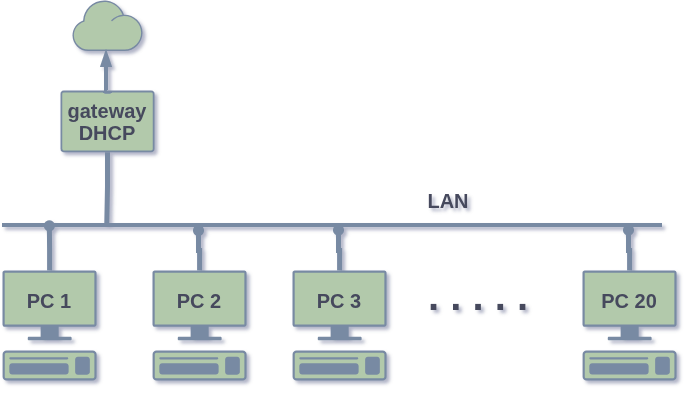
Installing and maintaining all the PCs one by one is a tedious work. Setting them up with central user accounts and central authentication is quite difficult even for experts.
Fortunately there is a simple solution that simplifies this task a lot. It works by installing and setting up only one of the PCs, and booting the rest from the LAN. The main PC will be used as a template for the other ones. User accounts and home directories will be created on the main PC and will be mounted on other PCs through the network, when a user makes a login.
2. Install
Let’s assume that on PC1 we have installed ZorinOS (which is based on ubuntu). Following the instruction from the installation page, we can install the LTSP tools like this:
apt install --install-recommends \
    ltsp ipxe dnsmasq nfs-kernel-server openssh-server \
squashfs-tools ethtool net-tools3. Setup
-
We already have a DHCP server on the LAN, but we also need to setup a proxy-dhcp which tells the PXE clients how to boot:
ltsp dnsmasq -
We also need to create a disk image for the PXE clients:
ltsp image /This image is going to use the host system itself (ZorinOS) as a template. Everything installed on the host system will be available to the clients.
-
The next step is to generate an iPXE menu and copy the iPXE binaries in TFTP, so that the clients can boot:
ltsp ipxe -
The image generated on step (2) will be served to the clients over NFS, and this command configures NFS:
ltsp nfs -
The last step is:
ltsp initrd
4. Testing
To test this setup, just boot another PC from the network interface (IPv4).
But we can also create a VirtualBox VM that behaves as if it is connected to the LAN and boots through PXE.
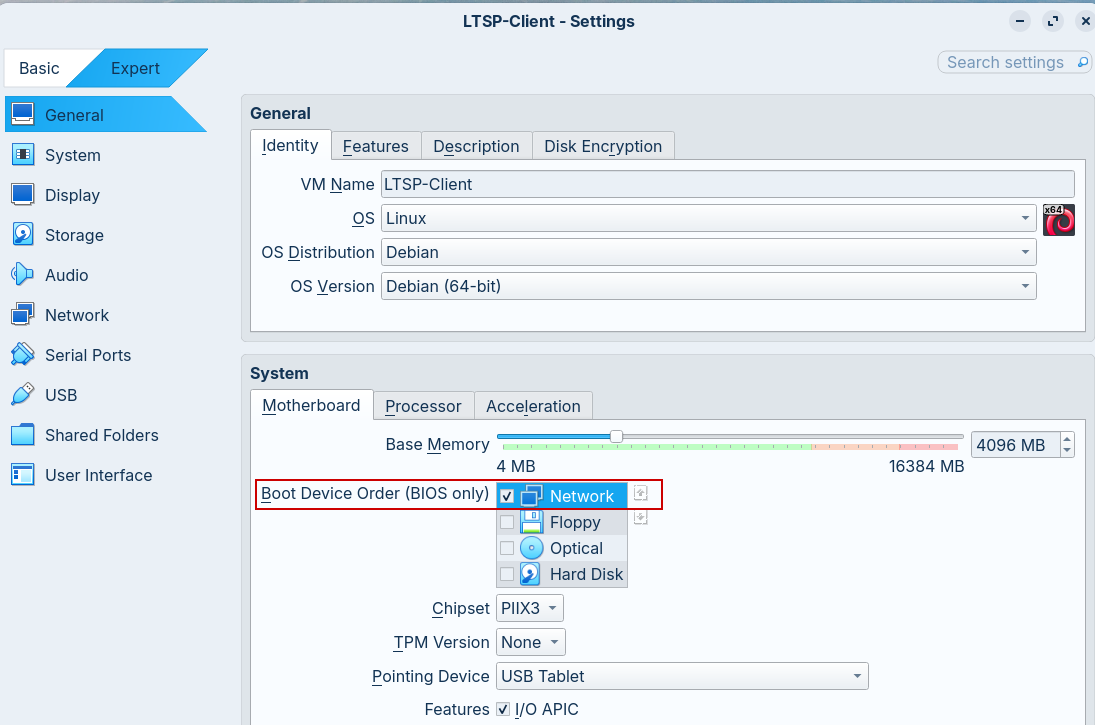
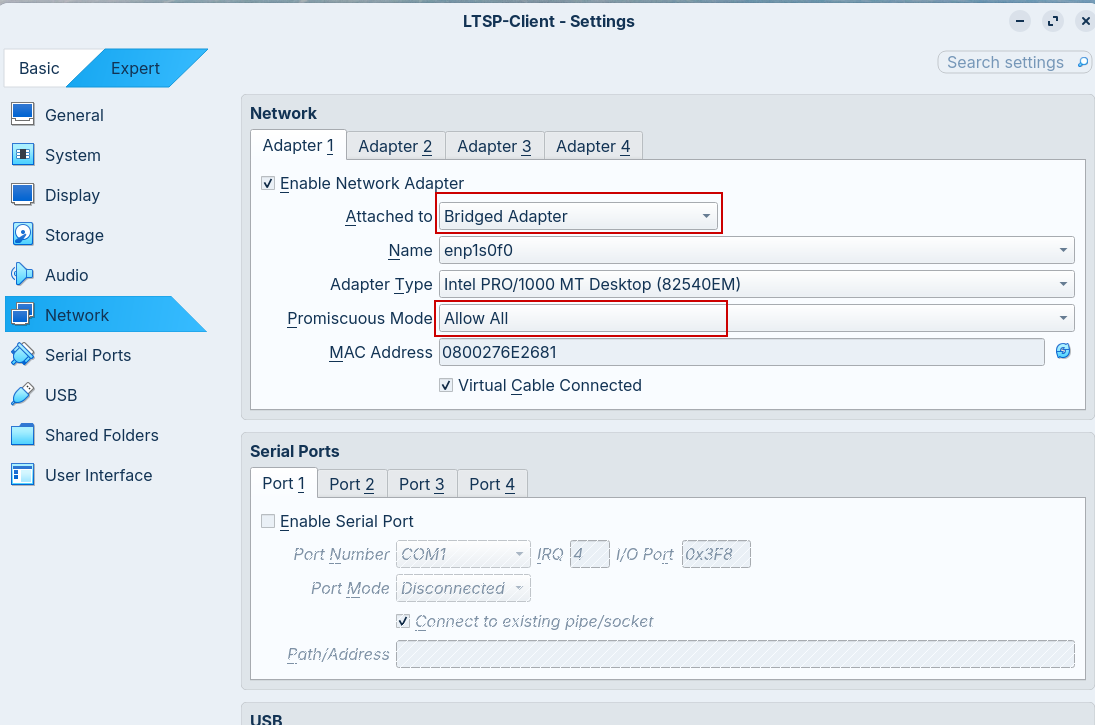
First, we should create it without a storage device. Then, we can open the settings and make sure that its network adapter is attached to a Bridged Adapter (this connects it directly to the same LAN where the host PC is connected). Make sure also that the Promiscuous Mode is set to Allow All (this is needed for DHCP etc.) We can also change the Boot Device Order so that it boots from the Network (uncheck UEFI first, if checked).
|
|
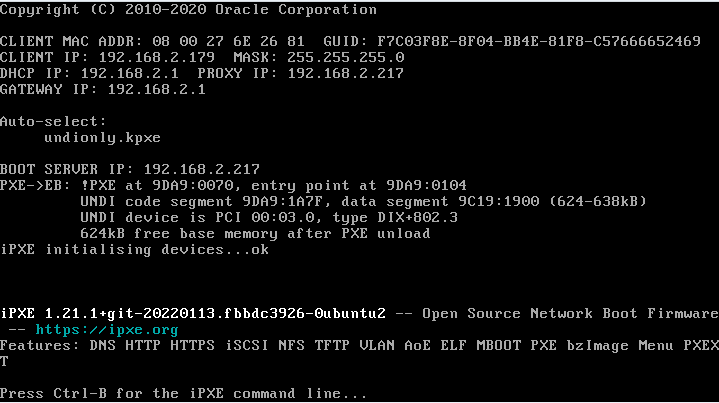
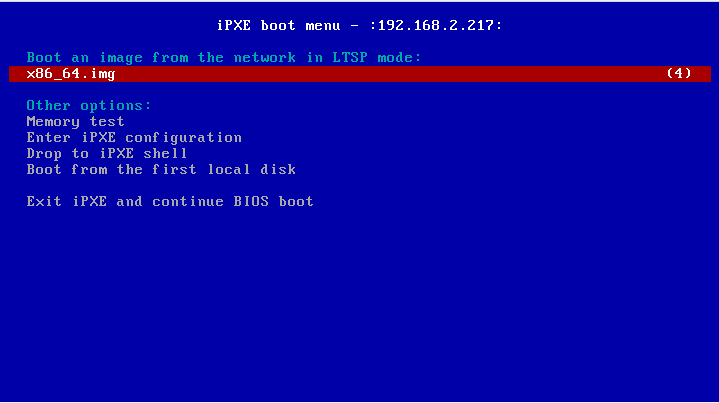
If everything works correctly, we should get an iPXE boot menu like this:
|
|
5. User accounts
The clients don’t use their own disk — they mount the home directory from the server (PC1) through NFS. So, we manage the user accounts on the server. We can manage them manually, or with a script like this one:
-
Download the script users.sh:
wget https://gitlab.com/docker-scripts/linuxmint/-/raw/master/inject/users.sh chmod +x users.sh ./users.sh -
Create a new account:
echo "user01:pass01" | ./users.sh create

groupadd student
echo "user01:pass01" | ./users.sh create

ls /home/
The first attempt failed because the script assumes that there is a group named student.Let’s create some more accounts:
./users.sh create << EOF
user02:pass02
user03:pass03
EOF
cat << EOF > accounts.txt user04:pass04 user05:pass05 EOF ./users.sh create accounts.txt rm accounts.txt./users.sh --help -
To make the new accounts available to the clients we have to update initrd (the last step of the setup that we saw above):
ltsp initrd
6. Using epoptes
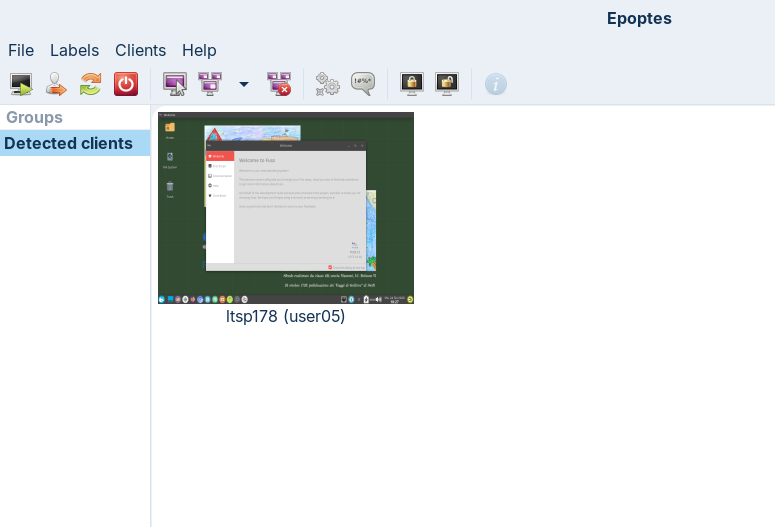
Figure 1. Epoptes
|
If we need to use epoptes, we can do it like this:
-
Install
epoptesandepoptes-clienton the host system:apt install epoptes epoptes-client -
Add the teacher’s account to the group
epoptes, so that he will be allowed to open it:adduser user01 epoptes -
We need to rebuild the squashfs image, so that it includes
epoptes-client.We can do it with the command
ltsp image /, and it will recreate the file/srv/ltsp/images/x86_64.img. But if we want to use another name for the image (not the defaultx86_64) we can do it with a symbolic link, like this:ln -s / ~/zorin-os ltsp image ~/zorin-os # check ls -lh /srv/ltsp/images/ ls /srv/tftp/ltsp/ ls -lh /srv/tftp/ltsp/zorin-os/ -
Finally, we also need to regenerate the PXE menu, to include the new image:
ltsp ipxe     # rebuild the ipxe boot menu

ltsp dnsmasq  # setup pxe proxy configuration
ltsp nfs      # share home directories via NFS
ltsp initrd   # share user accounts, ltsp config, etc.
From these commands, only rebuilding the iPXE menu is strictly required, the others are optional. However, because they run quickly, it doesn’t hurt to do them as well, just to make sure we are not missing something.
epoptes-client does not work on wayland, only on
x11. ZorinOS defaults to a wayland desktop, but it also allows to
change the settings and switch to x11 just before the login.
|
7. Image from chroot
Let’s say that on /dev/sda4 we have a Linux Mint system
(dual-boot). We can also build an ltsp image from it.
| Actually, we can build an ltsp image from any chroot system, no matter how we create it, but a dual-boot system is an easy way to create and install it. |
-
Let’s mount the system to
/srv/ltsp/linux-mint:mkdir -p /srv/ltsp/linux-mint mount /dev/sda4 /srv/ltsp/linux-mint -
Get inside the chroot directory and update the packages:
mount --bind /proc /srv/ltsp/linux-mint/proc mount --bind /dev /srv/ltsp/linux-mint/dev mount --bind /sys /srv/ltsp/linux-mint/sys chroot /srv/ltsp/linux-mint echo 'nameserver 1.1.1.1' > /etc/resolv.conf apt update apt upgrade apt autoremove -
Install the packages
ltsp(necessary) andepoptes-client(optional):apt install ltsp apt install epoptes-client -
Exit from chroot:
exit umount /srv/ltsp/linux-mint/proc umount /srv/ltsp/linux-mint/dev umount /srv/ltsp/linux-mint/sys -
Build the squashfs image:
ltsp image linux-mint ls -lh /srv/ltsp/images/ # clean up rm /srv/ltsp/images/x86_64.img umount /srv/ltsp/linux-mint/ rmdir /srv/ltsp/linux-mint/ -
Update the iPXE menu, NFS exports, user accounts, etc.:
ltsp ipxe # rebuild the ipxe boot menu ltsp dnsmasq # setup pxe proxy configuration ltsp nfs # share home directories via NFS ltsp initrd # share user accounts, ltsp config, etc.
8. Image from VM
I have installed FUSS Client on a VirtualBox VM. I’d like to create a squashfs image for the LTSP clients, based on the (virtual) disk of this VM.
First, let’s start the VM and install the packages ltsp (required)
and epoptes-client (optional) in it:
apt install ltsp
apt install epoptes-clientNow we can stop the VM, and build the squashfs image:
-
First, let’s convert the disk of the VM (
FUSS_Client.vdi) to the RAW format (FUSS_Client.img):apt install qemu-utils mkdir -p /data/tmp/ qemu-img convert -p -f vdi -O raw \ "/home/dasho/VirtualBox_VMs/FUSS_Client/FUSS_Client.vdi" \ /data/tmp/FUSS_Client.img ls -lh /data/tmp/FUSS_Client.img -
Next, create a relative symbolic link
/srv/ltsp/FUSS_Client.imgto the raw image:ln -rs /data/tmp/FUSS_Client.img /srv/ltsp/FUSS_Client.img -
Now we can build the squashfs image and clean up the temporary files:
ltsp image FUSS_Client ls -lh /srv/ltsp/images/ rm /srv/ltsp/FUSS_Client.img rm -rf /data/tmp/ -
Update the iPXE menu, NFS exports, user accounts, etc.:
ltsp ipxe     # rebuild the ipxe boot menu

ltsp dnsmasq  # setup pxe proxy configuration
ltsp nfs      # share home directories via NFS
ltsp initrd   # share user accounts, ltsp config, etc.
8.1. Hiding the list of users
By default, the login screen on the LTSP client shows a list of users. These user accounts do not come from the VM, they come from the LTSP server (the host machine). So, the LTSP client is using the base system of the VM (through the squashfs image), but the user accounts and home directories of the LTSP server (host machine).
However, I find the list of users on the LTSP client inconvenient, especially if there are many users (30-40 or more). Fortunately, it is easy to fix this.
-
Create the config file
/etc/ltsp/ltsp.confand add these lines:[clients] LIGHTDM_CONF="greeter-hide-users=true" -
Whenever we modify the configuration or user accounts, we have to run
ltsp initrdin order to make them available to the clients.
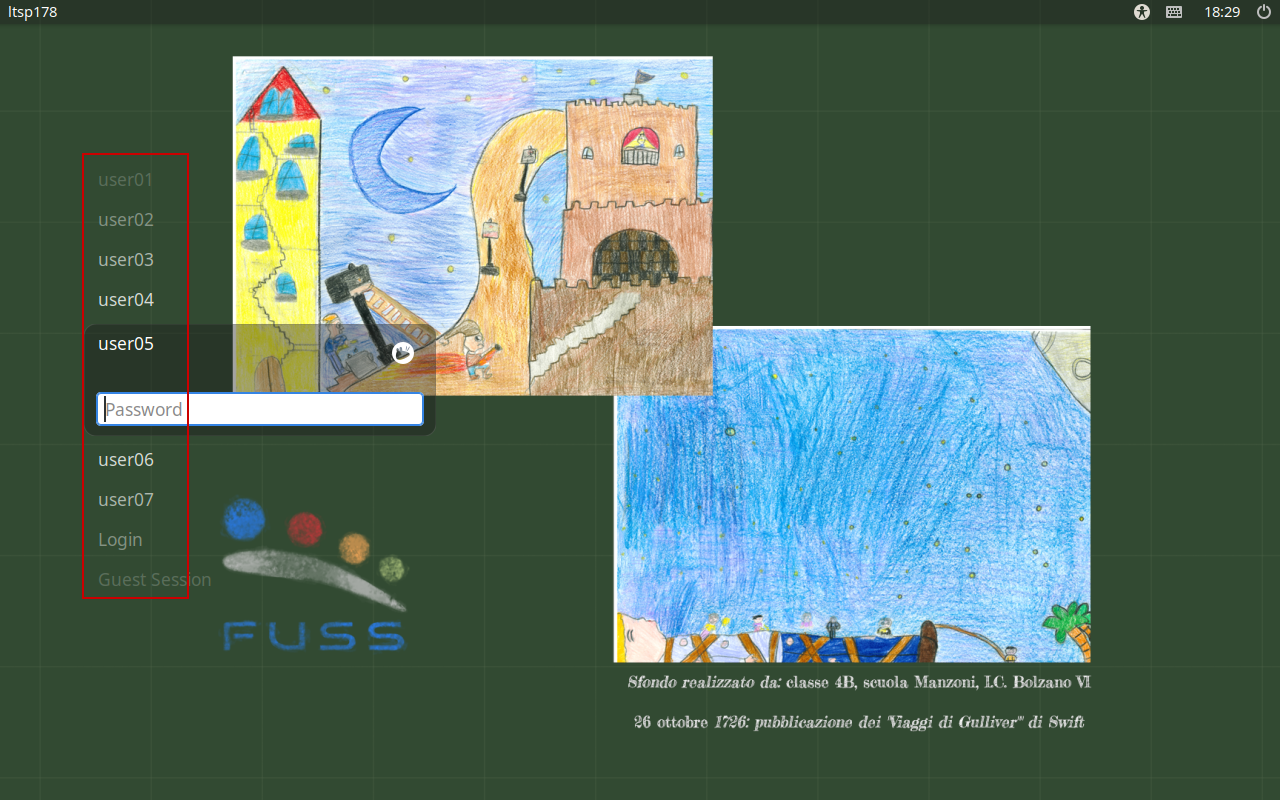
Figure 2. Visible User List
|
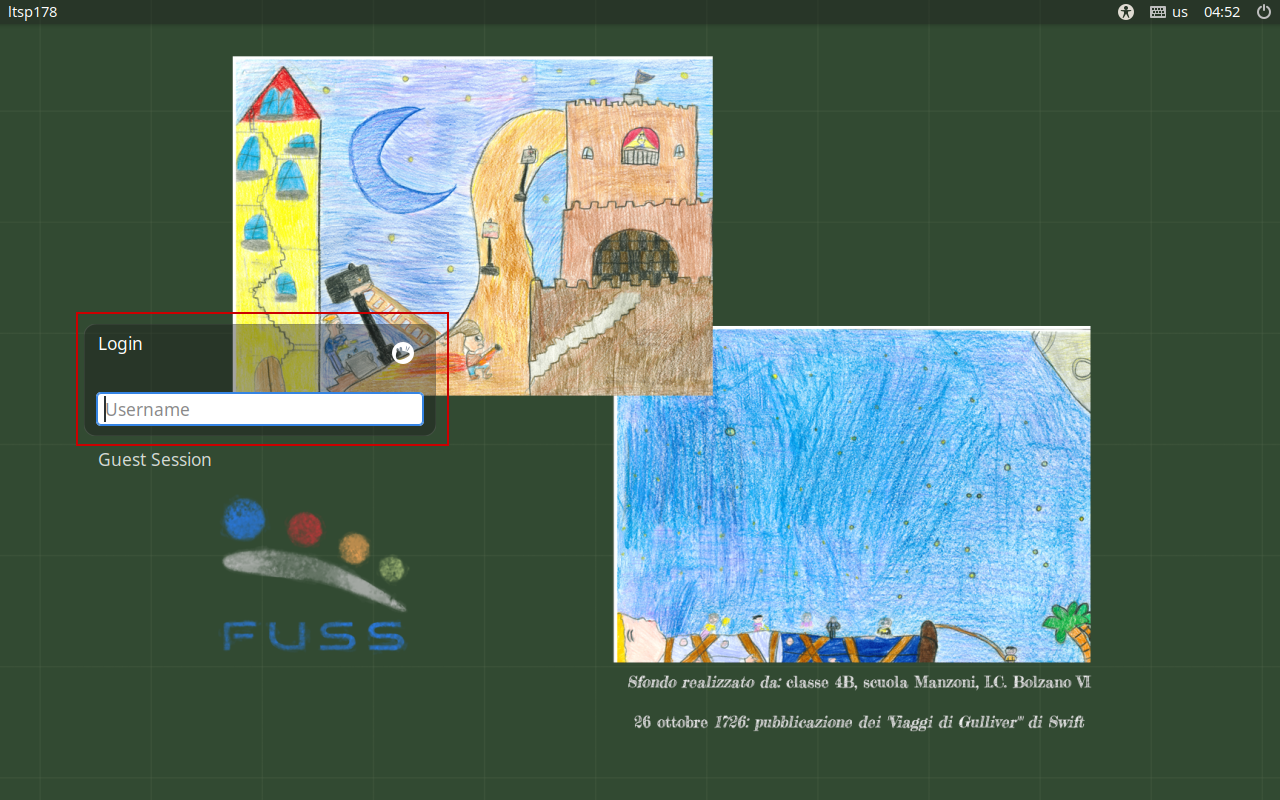
Figure 3. Hidden User List
|
| For more configuration options see: https://ltsp.org/man/ltsp.conf/ |